Browse the docs
Self-hosting
Install Crunu in your own network
Install the Crunu server on a host in your company network from the signed on-premises bundle, with or without internet access, and create the first owner.
Last updated
On this page
The on-premises bundle puts the whole Crunu server on one host in your network: the server, the web app and the agent releases. The server answers at an HTTPS address of your network, such as https://vault.kiteline.example, with a certificate from its own certificate authority or from yours. It works with or without internet access, and it starts in isolated mode: no outgoing connections until you allow a host.
Available from Crunu 6.3.0. On-premises is part of an Enterprise agreement. See On-premises for an overview.
What you need
- a Linux host with Docker Engine and the compose plugin, on the architecture of the bundle (
amd64orarm64), and Node.js 24 or newer for the installer's tools; - ports 80 and 443 of that host, reachable from the computers and machines that will use Crunu;
- a DNS name for the server in your network. An IP address works, but passkeys need a name;
- time synchronization (NTP) on the server and on every machine;
- from Crunu, under your agreement: the archive
crunu-onprem-<version>-<arch>.tar, its SHA-256, and the release public key.
For one computer only, see Try Crunu on one computer.
Get the bundle and check it
Once your Enterprise agreement is signed, Crunu sends you the archive together with its SHA-256 checksum and the release public key. Carry the archive into the network and compare its checksum with the one you received before you run anything from it:
sha256sum crunu-onprem-6.3.0-amd64.tar # on macOS: shasum -a 256You can also check the signature of the bundle yourself, with openssl 3 and jq, and make sure the directory holds no file the bundle doesn't list. Save the release public key as release-key.pem next to the archive:
tar -xf crunu-onprem-6.3.0-amd64.tar && cd crunu-onprem-6.3.0-amd64
t=$(mktemp -d)
printf '%s' "$(cat bundle.json)" > "$t/signed"
printf '%s==' "$(cat bundle.sig)" | tr '_-' '/+' | base64 -d > "$t/sig"
openssl pkeyutl -verify -pubin -inkey ../release-key.pem -rawin -in "$t/signed" -sigfile "$t/sig"
jq -r '.files[] | "\(.sha256)  \(.name)"' bundle.json | sha256sum -c -
{ jq -r '.files[].name' bundle.json; printf '%s\n' bundle.json bundle.sig SHA256SUMS; } | LC_ALL=C sort > "$t/listed"
find . ! -type d | sed 's|^\./||' | LC_ALL=C sort > "$t/found"
diff "$t/listed" "$t/found"
rm -rf "$t"
openssl prints Signature Verified Successfully, every file is OK, and diff prints nothing. A diff line that starts with > is a file the bundle doesn't list, such as a deploy/.env you didn't write: don't install that copy.
Run the installer
In the extracted directory:
sh install.sh --origin https://vault.kiteline.exampleIn a terminal the installer asks only about what the options leave out; --yes takes the defaults. It then:
- checks the bundle against its signature;
- loads the Docker images and checks their IDs against the signed ones;
- writes the settings
deploy/.envwith new keys, isolated mode and the releases of the bundle; - checks the settings with the server's own code;
- starts the server with Docker Compose;
- exports the root certificate of the internal certificate authority to
deploy/crunu-root.crt; - checks the running server with
doctorand prints a summary.
The end of the output looks like this:
Summary: OK — 12, warnings — 0, failures — 0, skipped — 5.

crunu 6.3.0 is running: https://vault.kiteline.example
Create the first owner: open https://vault.kiteline.example and enter this bootstrap token. Keep it secret: whoever has it can create the first owner.
  <the bootstrap token>
The root certificate of the internal CA: /opt/crunu-onprem-6.3.0-amd64/deploy/crunu-root.crt. Install it into the operating systems and browsers of the people who open crunu, and give it to the agents with --ca-file.
Keep a copy of deploy/.env in a password manager: it holds the server key. The extracted directory stays in use, because the server serves the agent releases from it. Don't move or delete it.
Options
| Option | What it does |
|---|---|
--origin https://<name> | the address people and agents use |
--tls internal | the default: the internal certificate authority issues and renews the certificate. See TLS and the root certificate |
--tls file --tls-cert <file> --tls-key <file> | a certificate of your company with its chain, and its private key without a passphrase |
--ca-file <file> | the root certificate of your company: the server trusts it for its own requests, and the agent command carries it |
--db sqlite or --db postgres | SQLite on a Docker volume (the default), or Postgres from the image in the bundle |
--env-file <file> | take the settings of an earlier install, or confirm deploy/.env after you changed it by hand |
--dry-run | checks the bundle and Docker, shows the settings and commands, changes nothing |
--no-doctor, --yes | skip the final check; ask nothing |
--local, --node-only | on one computer only |
sh install.sh --help lists them all. Exit codes: 0 — done, 1 — failed, 2 — invalid arguments.
Create the first owner
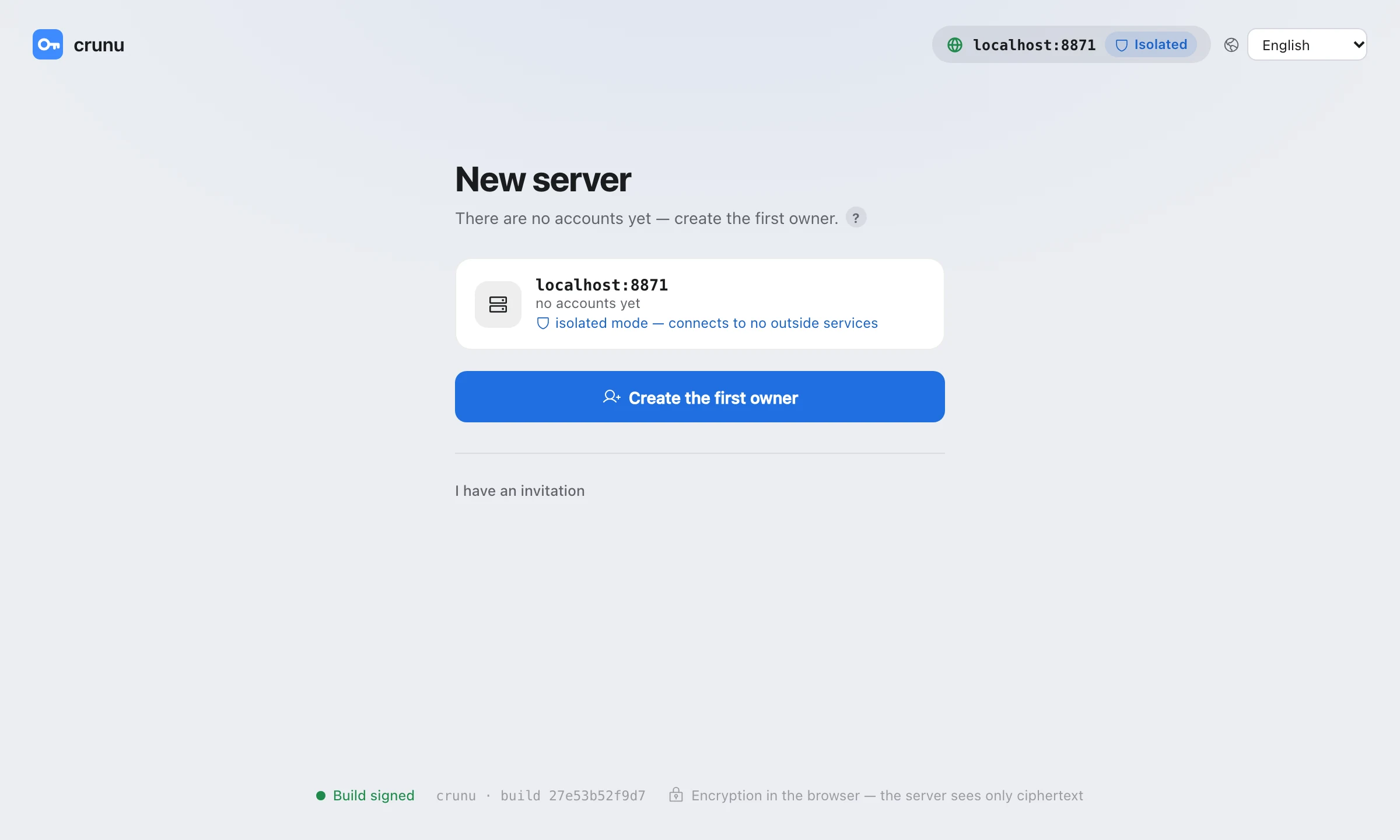
Install the root certificate on your computer first, as TLS and the root certificate describes. Then open the address. The welcome screen marks the server Isolated and says “isolated mode — connects to no outside services”. Choose Create the first owner, enter the bootstrap token and fill in the rest. Your password and Secret Key are created in the browser and never reach the server. Keep the Emergency Kit it shows.
Running it again
- The same command again keeps the settings: no new keys, no new token, and images already loaded aren't loaded again.
- An option that disagrees with the kept settings is refused with exit code 2, for example
--origin does not agree with the settings that are kept. Drop the option, or change the value indeploy/.env. - Settings you changed by hand are refused until you name them:
sh install.sh --env-file deploy/.env. - New settings over the data of an earlier install are refused. Every copy of a bundle on a host shares the Docker volumes
crunu_dataandcrunu_pgdata, and new keys wouldn't open that data. To update, name the old settings, as Backups and updates describes.